Discussion rooms
Discussion rooms are conversations by topic, open to every attendee. A room can be text only, or an audio or video call with a chat beside it. Some follow a session, and then show its Q&A and polls too.
Find a room
-
Open the event, select Live, then Discussion rooms. On a phone, select Menu, then Discussion rooms.
-
The top of the page shows the Room rules. Read them before you join.
-
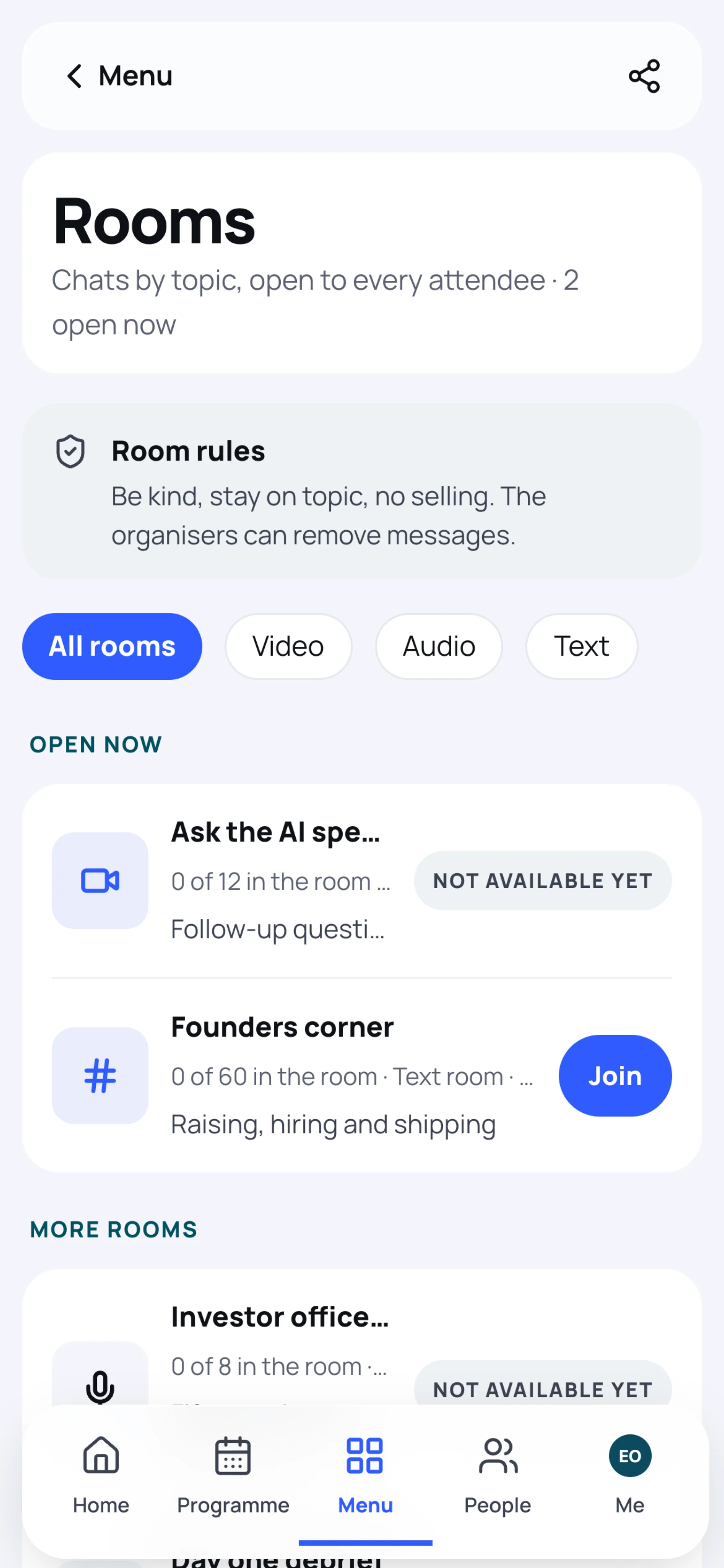
Open now lists the rooms you can join; More rooms lists the ones that open later or have closed. To see one kind only, select Video, Audio or Text.
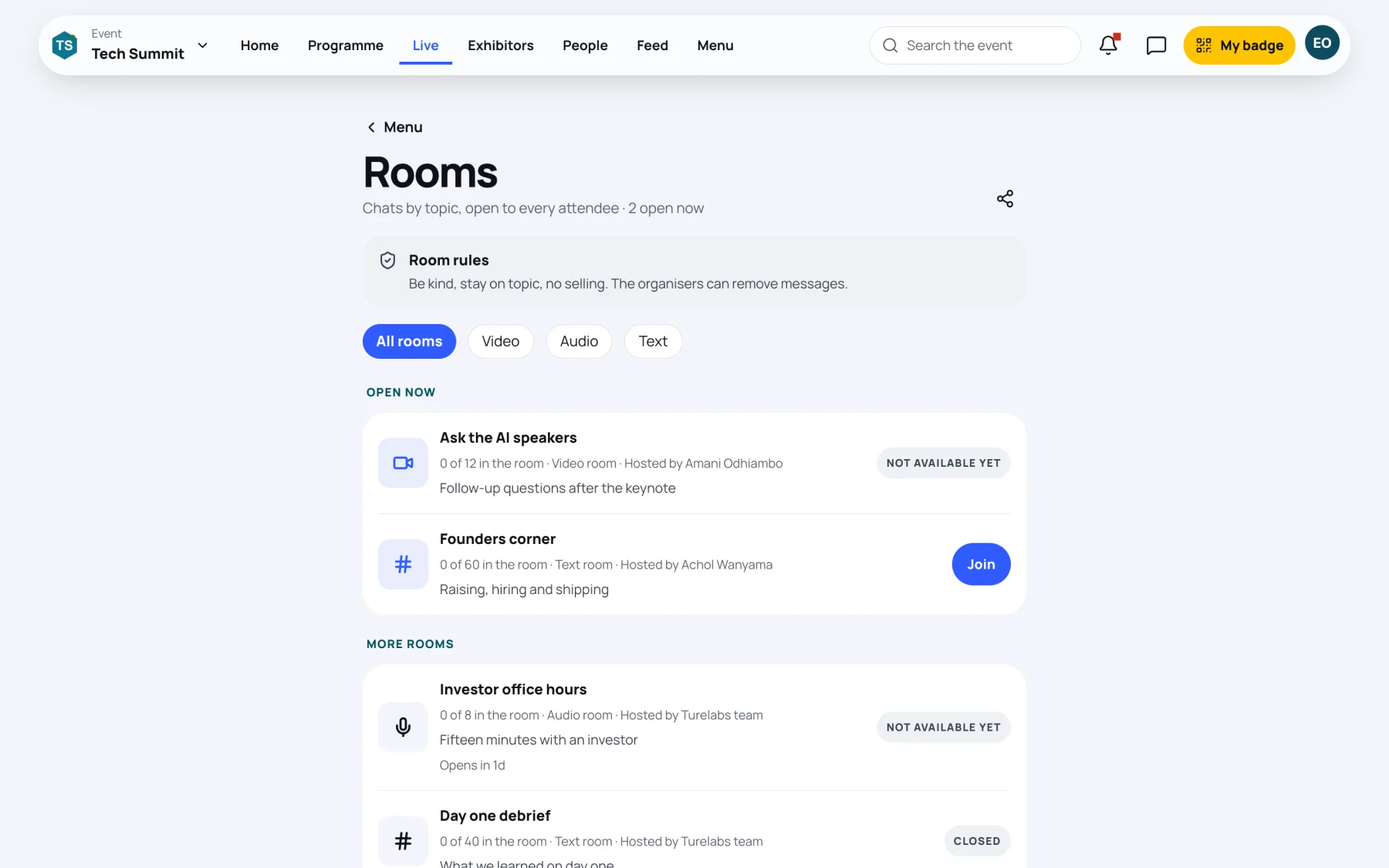
Each room shows how many people are in it out of its limit, its kind, who hosts it and a short description.
| Label | What it means |
|---|---|
| Join | The room is open and has space |
| Full | Every seat is taken. Places free up as people leave. |
| Opens and a time | The room opens later |
| Closed | The room has closed. You can still read a text room's messages. |
| Not available yet | Audio and video calls are not available for this room yet |
Join a text room
-
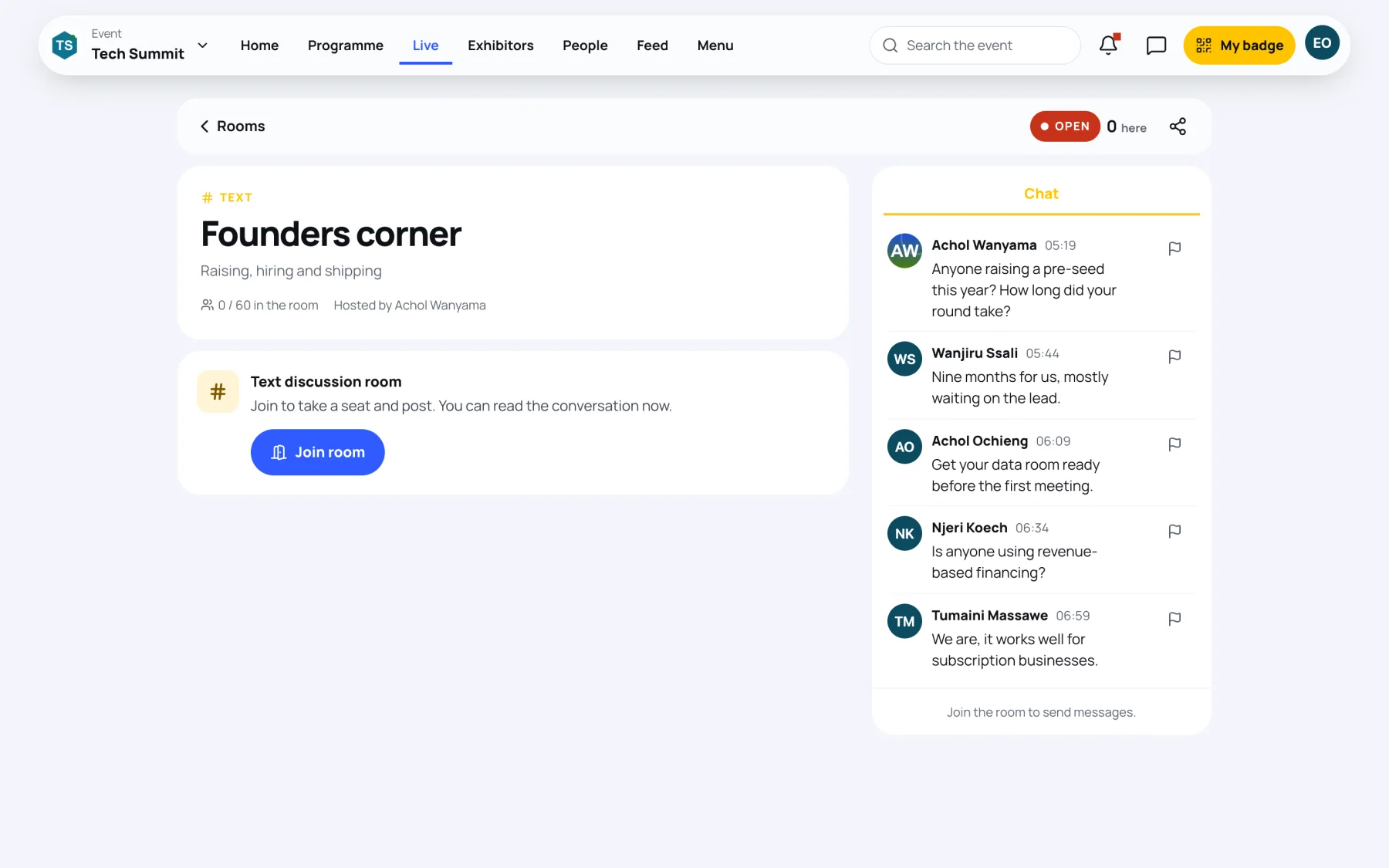
Select a text room to open it. You can read the conversation straight away.
-
Select Join room to take a seat. The room says You are in this room.
-
Type in Write a message and select the send button. Everyone in the room can read it.
-
When you are done, select Leave.
Your seat lasts while the room is open on your screen. If you close the page, the seat is given back after a few minutes, so a busy room does not fill up with empty places.
Join an audio or video room
-
Open the room. The lobby asks for your microphone, and your camera for a video room.
-
Select Allow access, then allow it in your browser.
-
Check your setup. Switch Mic on or Mic off, and Camera on or Camera off, before anyone hears or sees you. The lobby says how many people are already there.
-
Select Join room. Use Mute, Stop camera and Share screen while you are in it, and Leave when you are done.
Report or delete a message
- To remove one of your own messages, select delete on it and confirm. It disappears for everyone in the room.
- To report someone else's message to the organisers, select the flag beside it, choose a reason and send.
Messages held for review are labelled Held for review, only you can see it until the organisers look at them.
Last updated