Control who can contact you
You decide who can find you, who can message you and who can ask you for a meeting. If someone makes you uncomfortable, you can block them, report them to the organising team, or both. They are never told which you did.
Open your privacy settings
-
On a computer, select your initials at the top right, then Settings. On a phone, select Me, then Settings.
-
Scroll to Directory and Networking privacy.
These settings apply at every event you attend.
Leave the directory
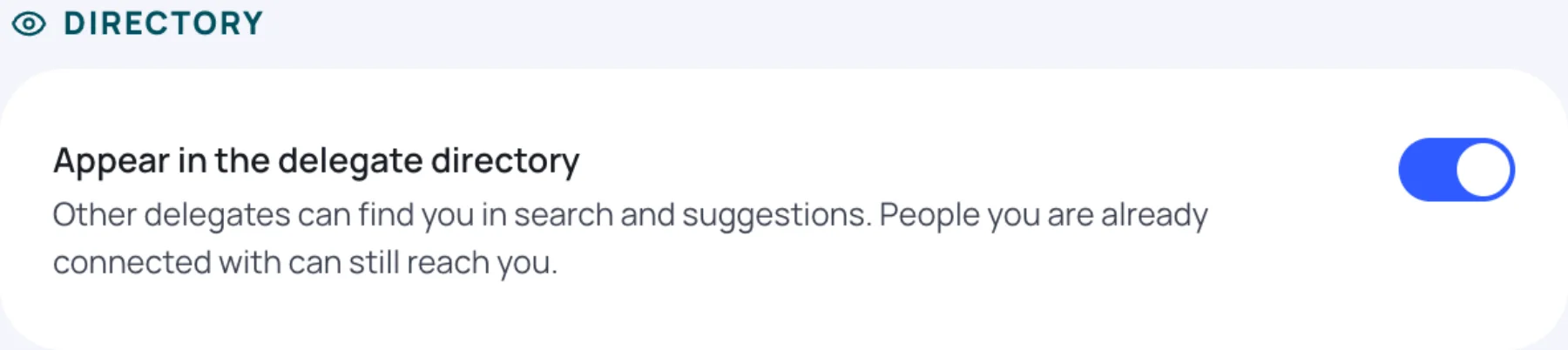
Under Directory, turn off Appear in the delegate directory to stop other delegates finding you in search and suggestions. People you are already connected with can still reach you.
Choose who can find, message and meet you
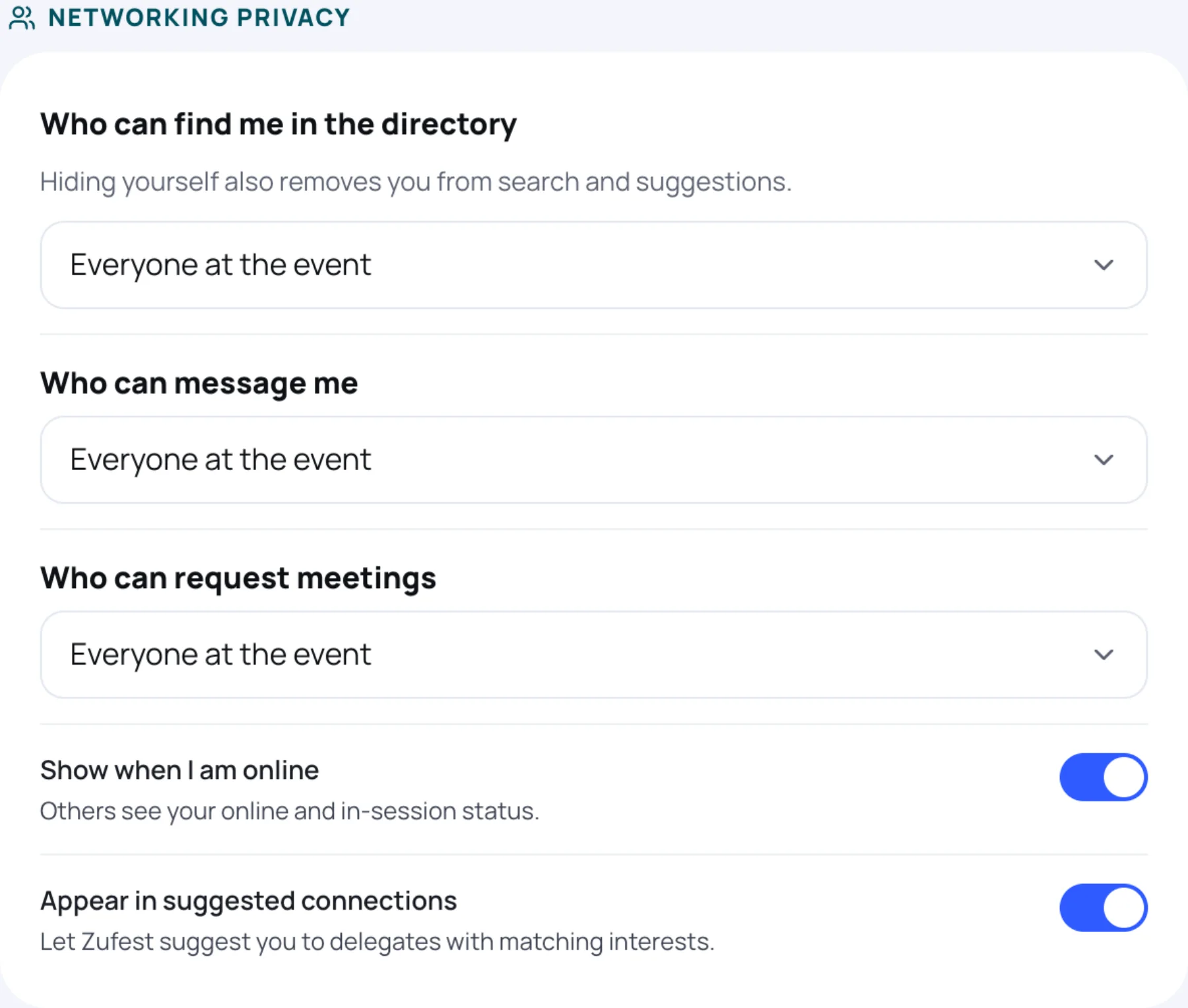
Under Networking privacy:
| Setting | Choices | What it does |
|---|---|---|
| Who can find me in the directory | Everyone at the event, Only my connections, Nobody (hide me) | Who sees you in the directory and in search. Hiding yourself also removes you from suggestions. Turned off while Appear in the delegate directory is off. |
| Who can message me | Everyone at the event, Only my connections, Nobody | Who may send you a message. It is checked on every message, not just the first. |
| Who can request meetings | Everyone at the event, Only my connections, Nobody | Who may send you a meeting request. |
| Show when I am online | On or off | Whether others see your online and in-session status. |
| Appear in suggested connections | On or off | Whether Zufest suggests you to delegates with matching interests. |
Changes save as soon as you make them.
Block someone
-
Open the person's profile.
-
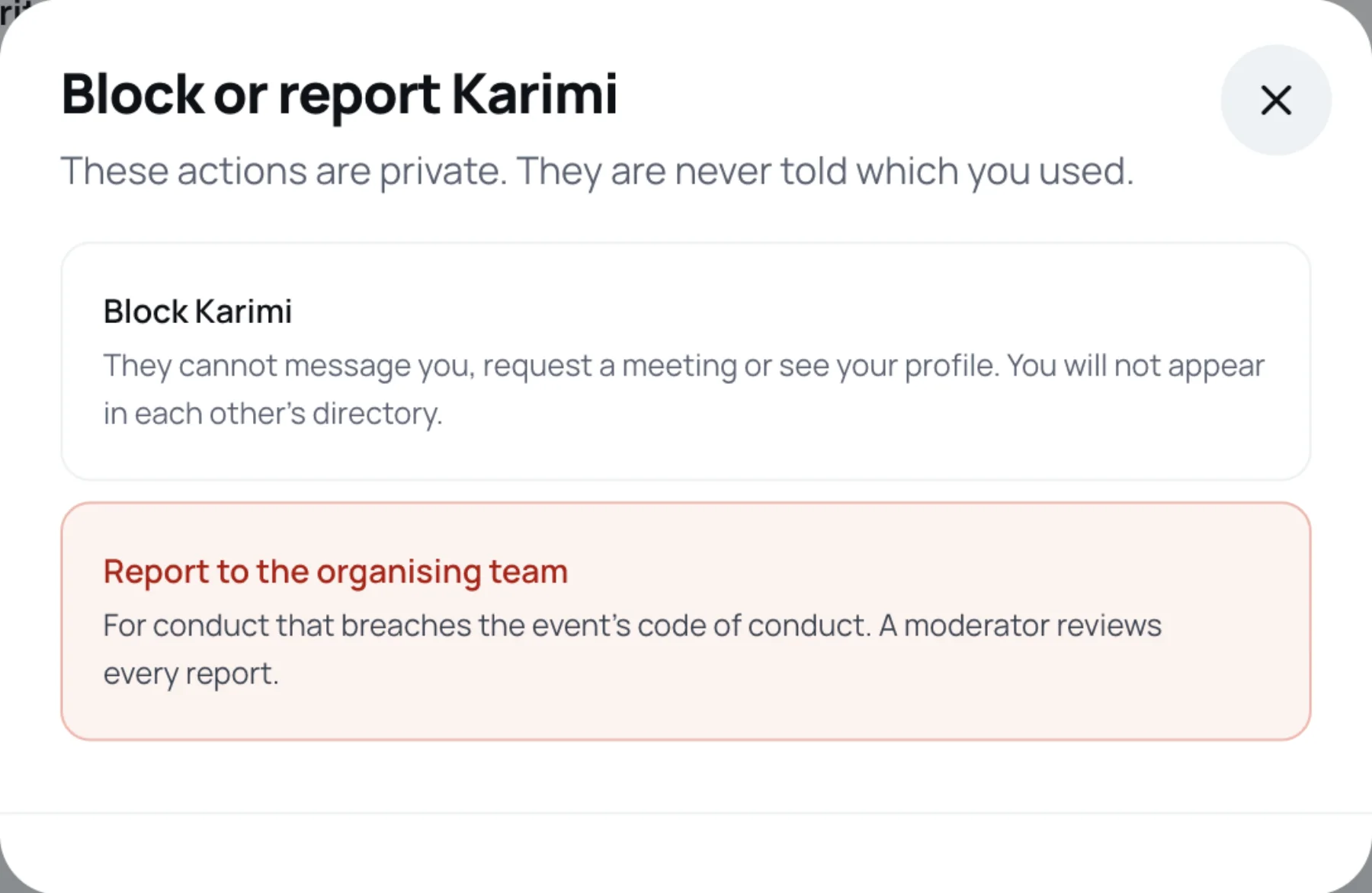
Under More, select Block and their name.
-
Select the block option, then confirm with Block.
Once blocked, they cannot message you, request a meeting or see your profile, and neither of you appears in the other's directory. Their posts are hidden from your feed.

Report someone to the organisers
Report conduct that breaks the event's code of conduct. A moderator from the organising team reviews every report.
-
Open the person's profile.
-
Under More, select Report and their name.
-
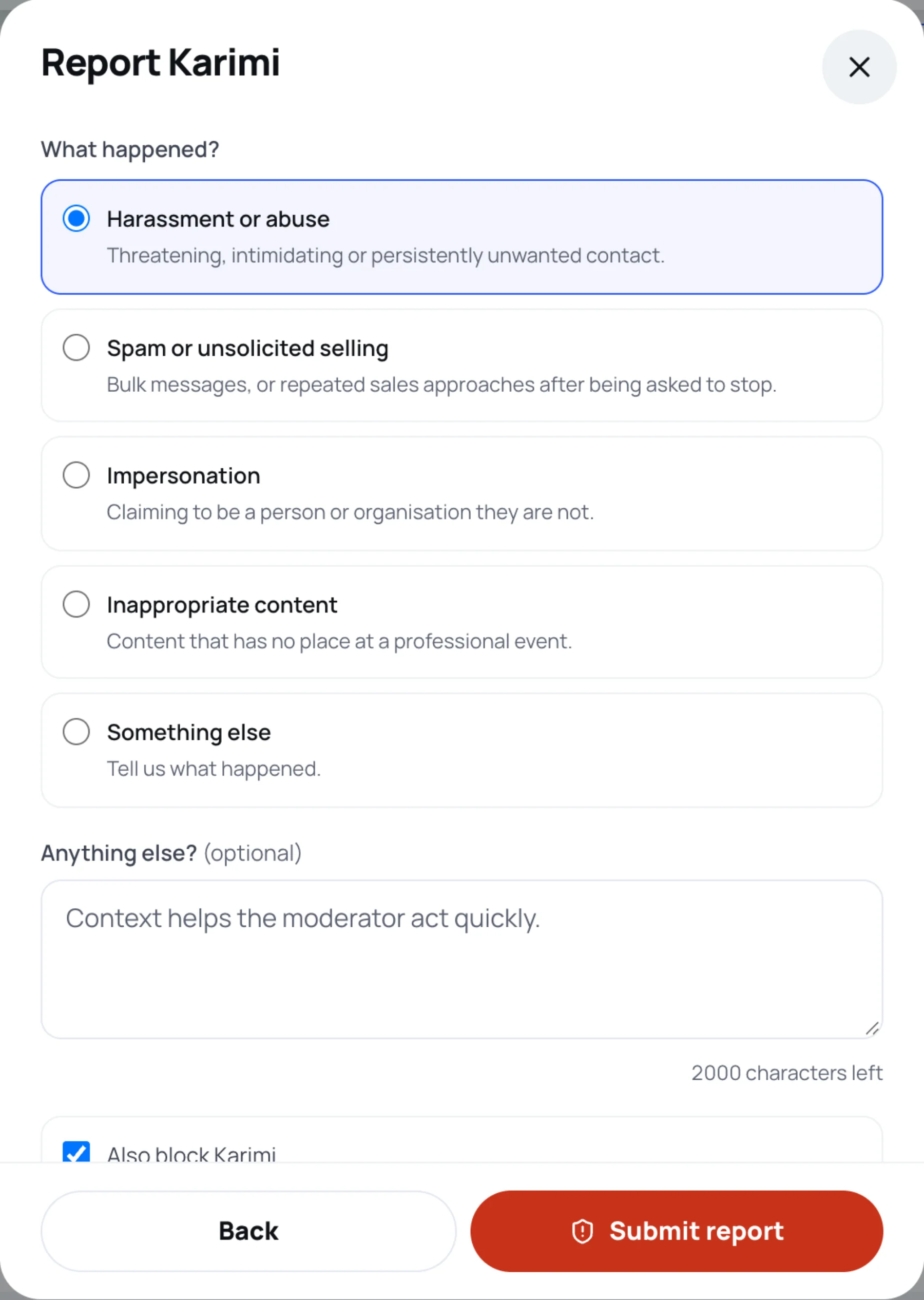
Under What happened?, choose Harassment or abuse, Spam or unsolicited selling, Impersonation, Inappropriate content or Something else.
-
Optional: under Anything else?, add context. It helps the moderator act quickly.
-
Also block is ticked for you. Untick it if you only want to report.
-
Select Submit report.
To report a post in the event feed rather than a person, see Report a post.
Last updated