Add a session
A session is anything on the programme: a keynote, a panel, a workshop, a break. This page walks through the session form field by field.
Create the session
-
Go to Programme and select New session.
-
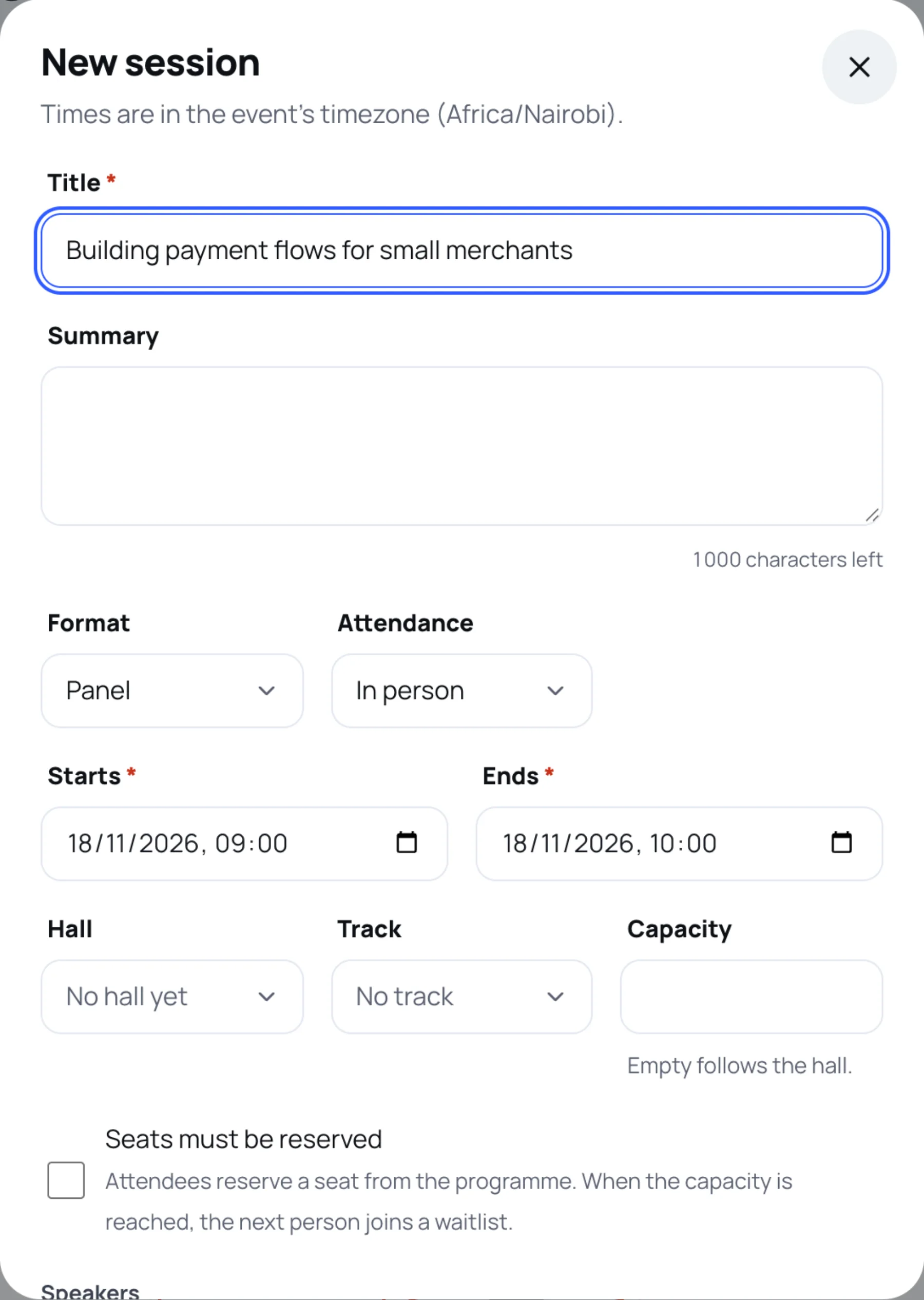
Type a Title. This is the only field you must fill in besides the times.
-
Add a Summary: a few sentences attendees read on the session page.
-
Choose a Format: Keynote, Panel, Workshop, Fireside, Demo, Networking or Break.
-
Choose the Attendance:
- In person: only in the hall.
- Hybrid: in the hall and online.
- Online only: no hall needed.
-
Set Starts and Ends. Times are in the event's time zone, shown at the top of the form (Africa/Nairobi for Turelabs Tech Summit).
-
Choose a Hall and a Track. You can leave the hall as No hall yet while you plan, but you need one to publish an in-person or hybrid session.
-
Leave Capacity empty to use the hall's seats, or type a smaller number.
Reserved seats
Tick Seats must be reserved for sessions with limited places, such as a hands-on workshop. Attendees then reserve a seat from the programme. When the capacity is reached, the next person joins a waitlist.
Choose the speakers
-
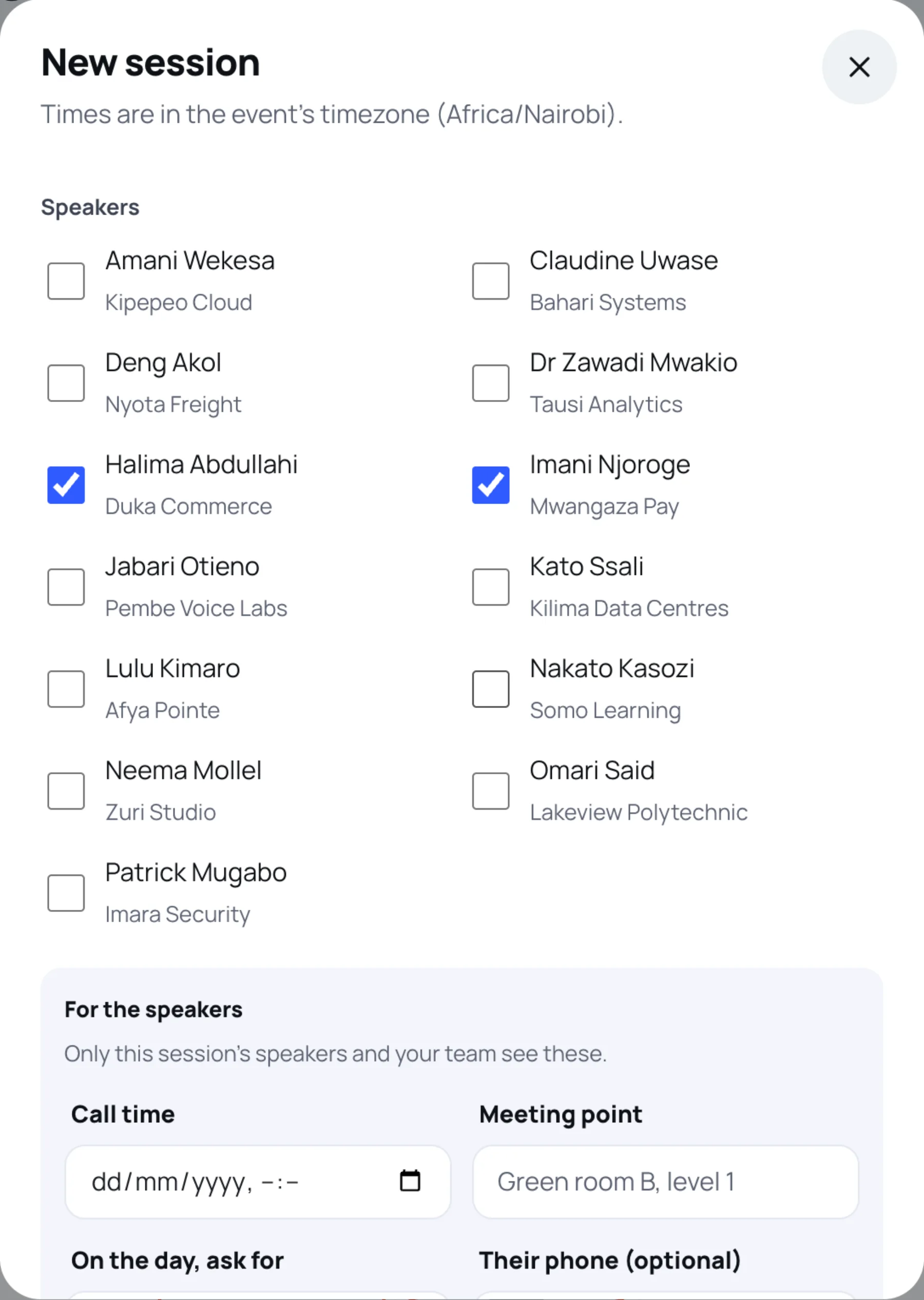
Scroll down to Speakers and tick each person who speaks in the session.
-
Fill in For the speakers if you want to tell speakers where and when to arrive:
- Call time: when they should be there.
- Meeting point: for example "Green room B, level 1".
- On the day, ask for: the name and role of their contact.
- Their phone (optional): the contact's number.
Only the session's speakers and your team see these details. Attendees never do.
Save
Select Save session. The new session is a Draft. It appears in the grid but attendees cannot see it until you publish it (see Build the programme).
Edit or cancel a session
Select the session in the grid, then Edit session. The same form opens, with a Status field: Scheduled, Live, Ended or Cancelled.
Choose Cancelled rather than deleting a session people have already saved. It stays on the programme marked as cancelled, so attendees can see what changed.
Last updated