The meeting programme
Attendees book meetings with each other in the app. The meeting programme is your side of it: every meeting in one list, meetings you book for two people, numbered tables that are never double-booked, and targets for hosted buyers.
See every meeting
In the organiser sidebar, under People, select Meetings and tables. The Meetings tab lists every one-to-one meeting, booked by attendees or by your team.
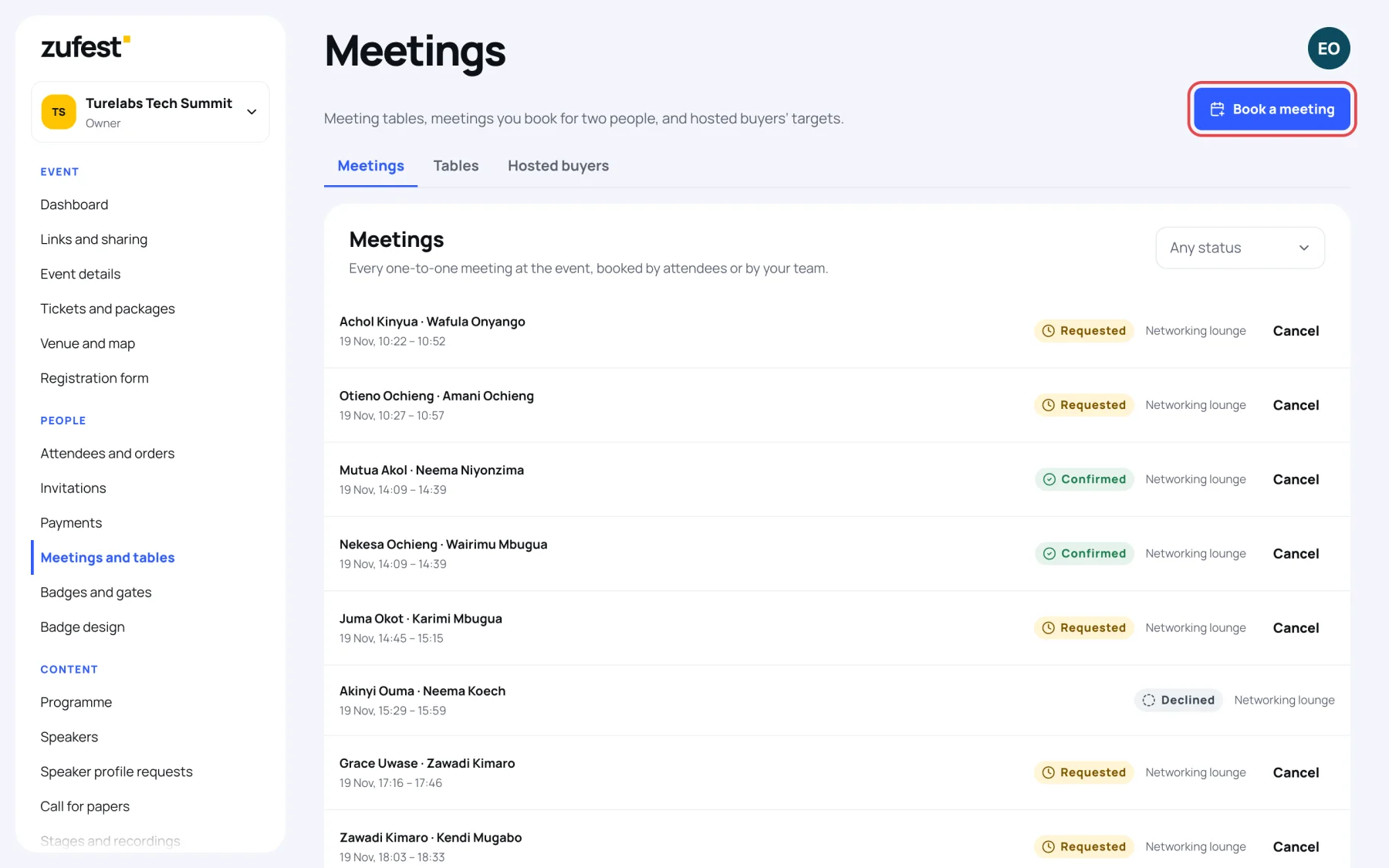
Each meeting shows the two people, the time, its status (Requested, Confirmed, Declined or Cancelled) and where it takes place. Filter by status with Any status. Meetings your team booked are marked booked by your team.
To cancel a meeting, select Cancel and confirm. Both people are told in their inbox that the organising team cancelled it, with its time and place.
Book a meeting for two people
Use this to set up meetings between a hosted buyer and a seller, or any two people with a confirmed place.
-
Select Book a meeting.
-
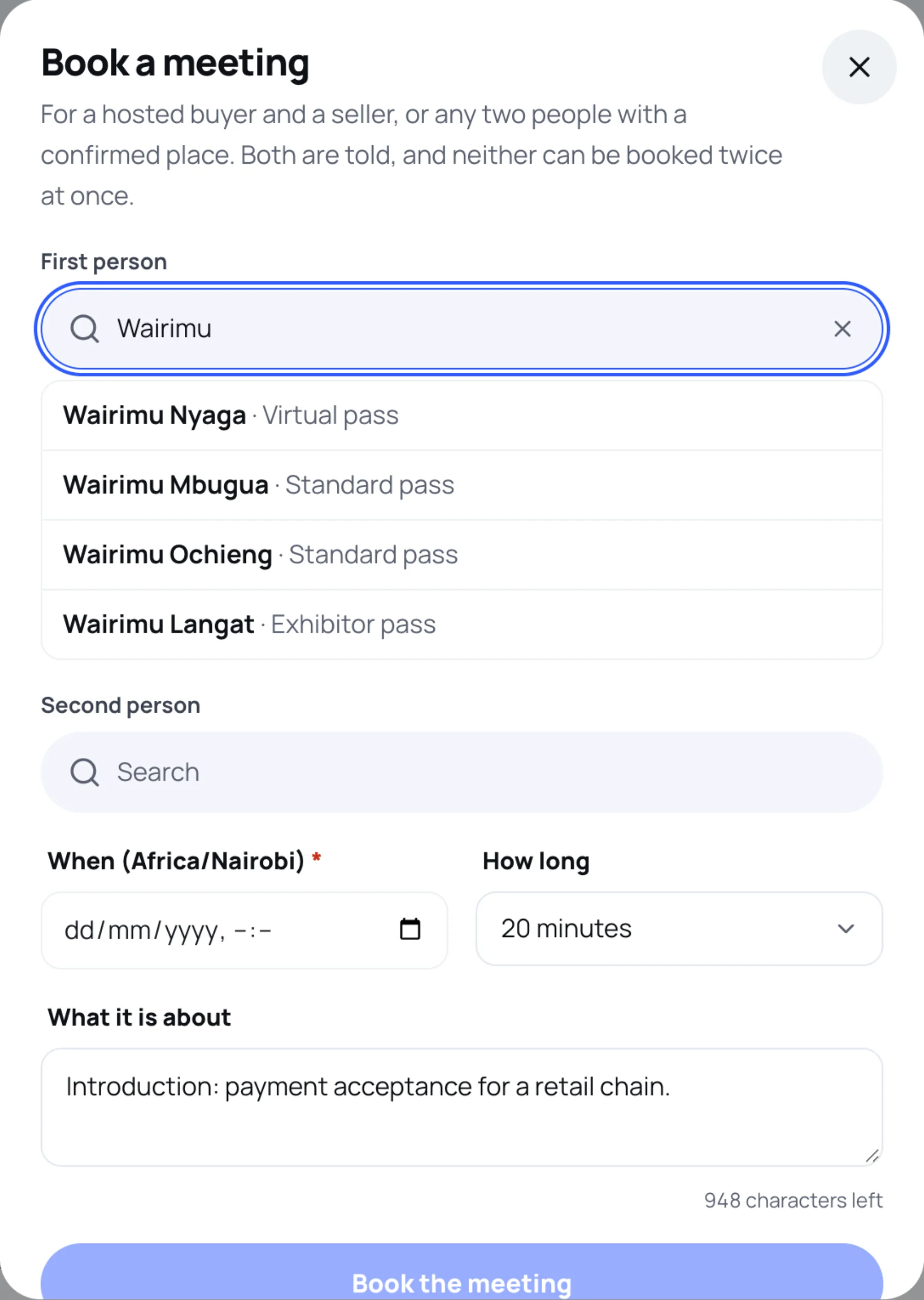
Under First person, start typing a name and choose from the list. Each person shows their ticket.
-
Choose the Second person the same way.
-
Set When, in the event's time zone, and How long: 15, 20, 30, 45 or 60 minutes.
-
If you have tables, choose a Table, or leave The first free table.
-
Add What it is about if you like.
-
Select Book the meeting.
The meeting is confirmed straight away, and both people get a message with the time and place. Zufest refuses the booking if:
- either person already has a confirmed meeting at that time;
- either person has blocked the other;
- the table you chose is taken;
- either person does not hold a confirmed place with their own account (a guest on someone else's order cannot be booked).
Number your meeting tables
Tables let attendees choose "A meeting table" as the place when they propose a meeting. When the meeting is confirmed it gets the first free table, and no table is ever booked twice at the same time.
-
Select the Tables tab.
-
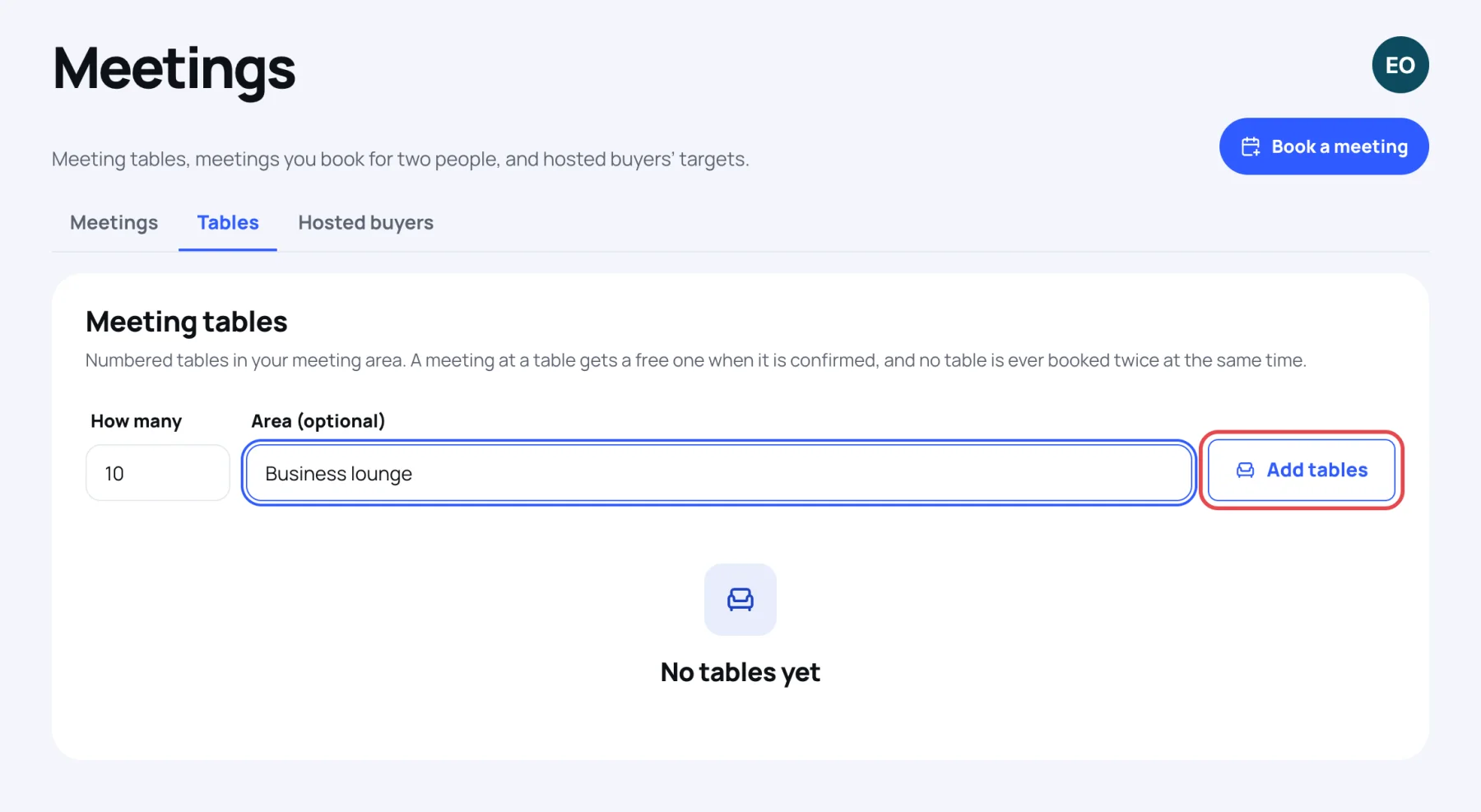
Type How many tables to add and, if you like, an Area, for example "Business lounge".
-
Select Add tables. They are numbered on from your last table, for example "Table 11", "Table 12".
Each table has an In use switch. Switch it off to stop the table being given out. You cannot remove a table with meetings booked: switch off In use instead. On the Meetings tab, you can move a confirmed meeting to another table with the menu on its row.
Track hosted buyers
A hosted buyer is someone who agreed to take a number of meetings, often in return for travel or a pass.
-
Select the Hosted buyers tab.
-
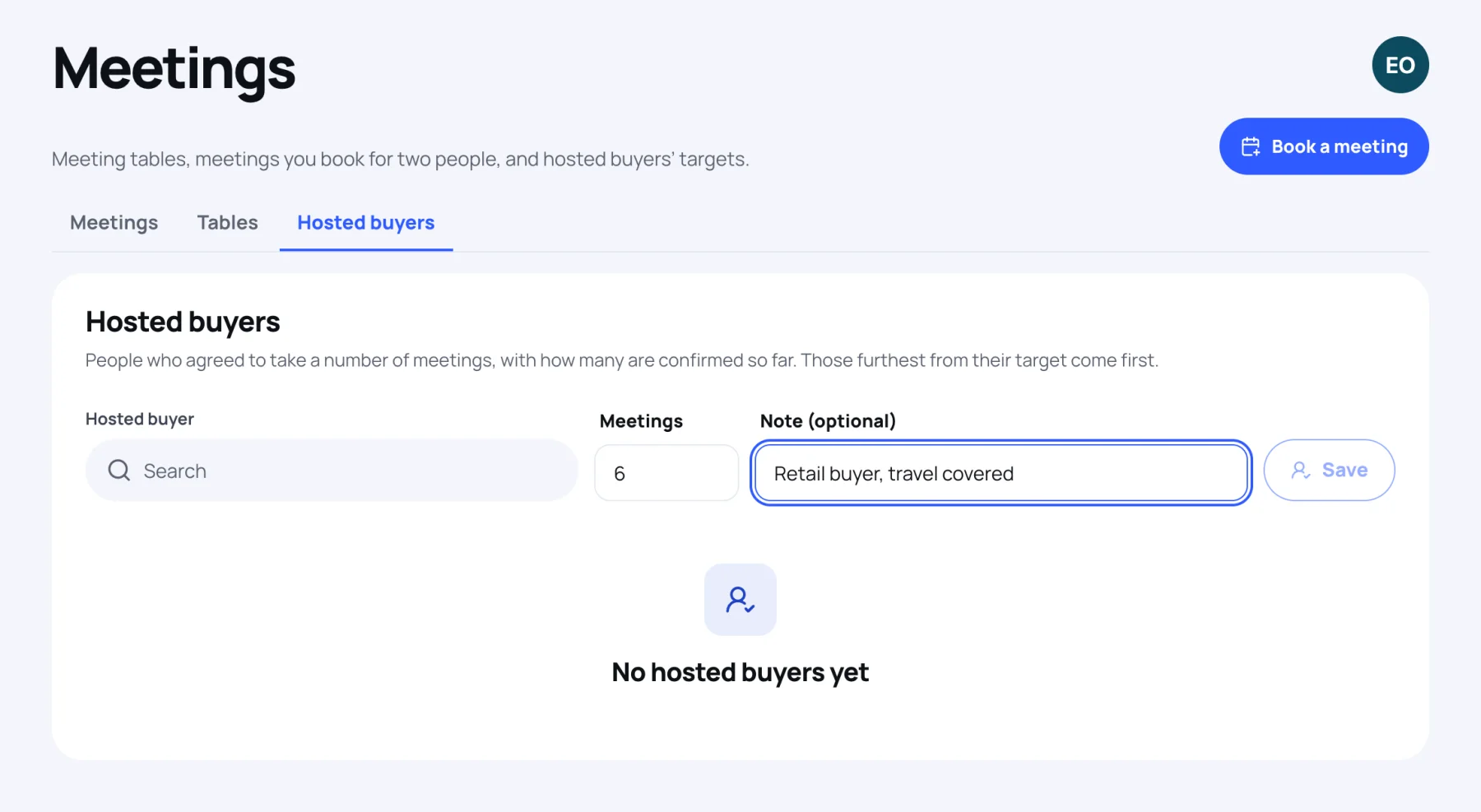
Under Hosted buyer, search for the person.
-
Type their target number of Meetings and an optional Note.
-
Select Save.
The list shows confirmed meetings against the target, for example "2 of 6". Those furthest from their target come first, so you know whose meetings to book next.
For how attendees book meetings themselves, see Book a meeting.
Last updated